 Orbital Intelligence
Easily Update Your Windows Applications with WinGet
Everyone knows the drill: run Windows Update, install the patches, restart, and breathe easy. It's Cybersecurity 101 — keeping your Windows operating system protected from known exploits and threats.
But here's the hard truth: Windows Update does not patch non-Microsoft software leaving outdated applications as the real weak link in your system's security. Browsers, PDF readers, media players, office suites — any third-party software with a vulnerability can become an open door for attackers. A significant percentage of breaches and ransomware incidents exploit unpatched apps, not the operating system itself.
Updating Windows is essential. Updating everything else is non-negotiable. Your cyber security depends on it.
This blog will show you how to simplify updating applications from a diverse range of vendors with a minimal investment of time and effort with Microsoft's free WinGet utility program.
Introducing WinGet
Updating Windows is essential. Updating everything else is non-negotiable. Your cyber security depends on it.
This blog will show you how to simplify updating applications from a diverse range of vendors with a minimal investment of time and effort with Microsoft's free WinGet utility program.
Introducing WinGet
Introducing WinGet
Meet WinGet — Microsoft's built-in Windows Package Manager that's revolutionizing how you handle software on Windows 10, 11, and Server.
This powerful command-line tool lets you discover, install, upgrade, remove, and configure applications with ease — no more hunting websites, downloading executables, or dealing with messy installers. WinGet taps into the official Microsoft community repository plus the Microsoft Store, delivering and updating thousands of apps at your fingertips.
Quick reality check: WinGet doesn't cover every single app out there. A handful of software vendors rely on their own updaters and skip the WinGet ecosystem. But here's why that barely matters: WinGet handles the vast majority of your everyday tools — browsers, utilities, dev apps, media players, and more — with a single sweep. Instead of manually checking dozens (or hundreds) of programs, you automate patching for 90%+ of your apps in seconds.
The result? Massive time savings, fewer forgotten updates, a dramatically stronger security posture, and way less hassle. Those few manual holdouts? Handle them separately — no big deal when everything else is effortless.
One command. Near-total coverage. Zero excuses for running outdated software.
Check for Windows App Updates
To get started with WinGet, we need to open the Windows Terminal or the Command Prompt from the Windows Start menu. Search the Start menu for terminal or command prompt, then click open. Both options will deliver the same WinGet experience. The Windows command line might feel intimidating at first, but you'll be amazed how quickly you start feeling like a total pro. The example screenshots throughout this blog demonstrate WinGet using the Windows Terminal.
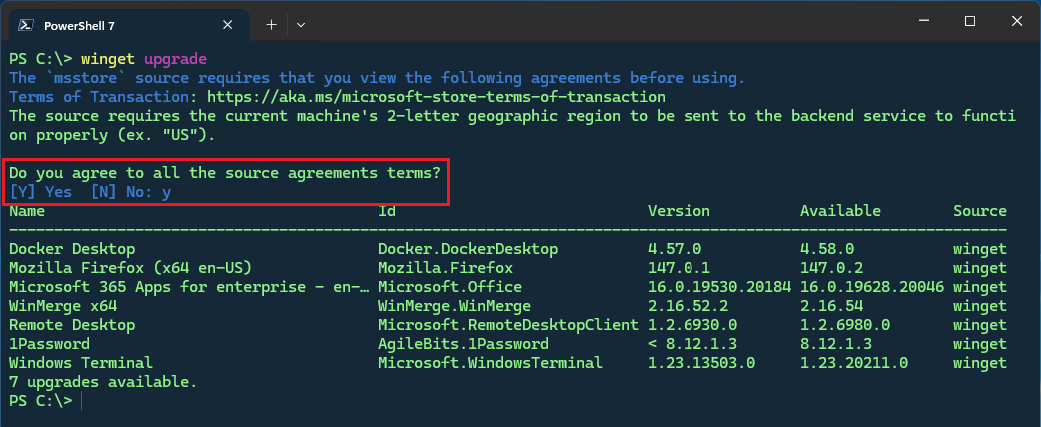
When you have your terminal of choice opened, just type winget upgrade at the command prompt and then press the Enter key to instantly see which apps on your system are crying out for updates.
Note: If this is your first time running WinGet, you will be prompted to accept the Microsoft Store terms to continue.
Type Y then press the Enter key to proceed.
You will get a clean table revealing every upgradable application, complete with current version, available version, and source. It's like having X-ray vision into your software's security and performance health.
Note: The winget list --upgrade-available command performs the same actions as winget upgrade if you prefer to practice
your typing skills.
Update All Windows Apps
The true power of WinGet is its ability to update all apps with a single command — simply type winget upgrade --all at the command prompt.
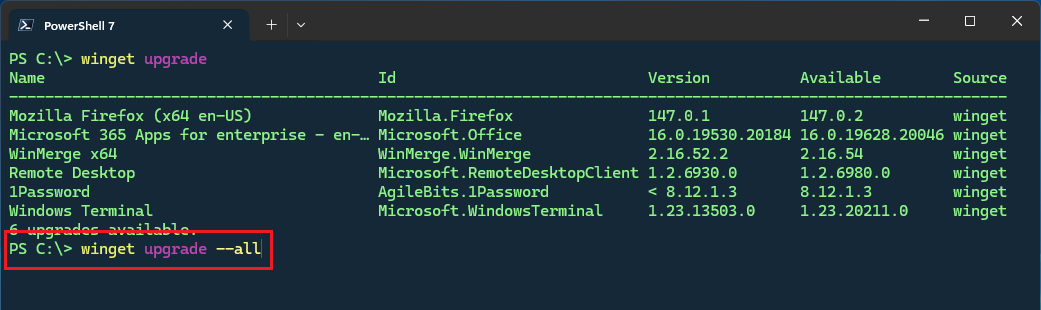
When you press the Enter key, WinGet will download each app update and automatically begin the upgrade process.
Note: WinGet may notify you to "Expect a prompt" to run the installer with Windows administrator privileges. This prompt will
appear as a separate window with the title "User Account Control", click Yes to continue.
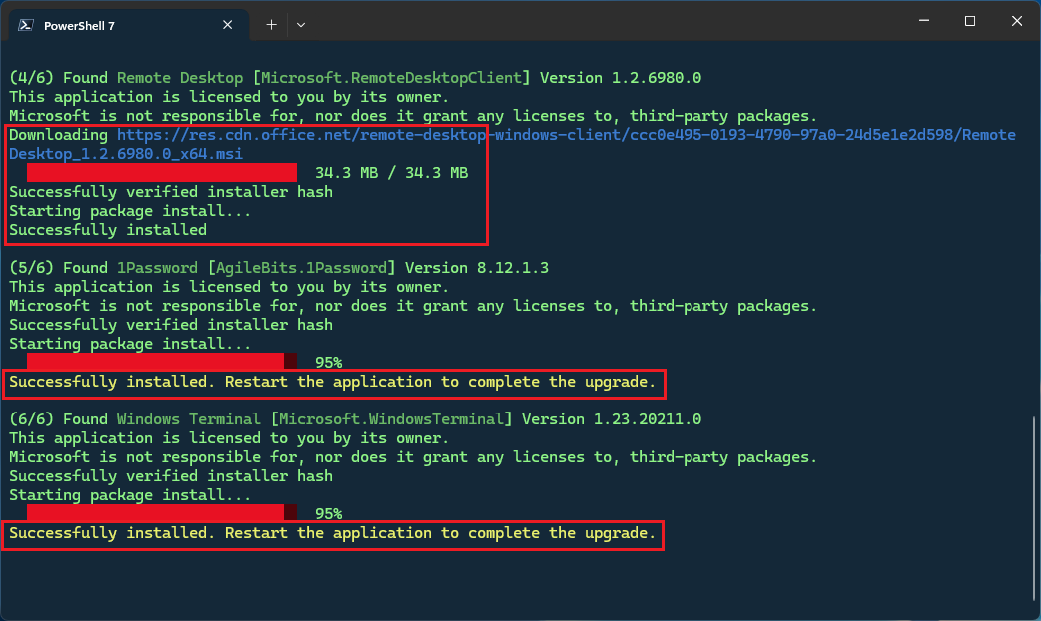
When the upgrade finishes successfully, WinGet displays a clear "Successfully installed" message in the terminal — your signal that each app is now running the latest version, patched, and more secure.
No guesswork, no digging through logs — just straightforward confirmation that your one-command update worked.
Note: You might also see a note like "Restart the application to complete the upgrade" for apps that need a relaunch to apply
changes fully — this typically happens when the app is running during the upgrade process. For example, the Windows Terminal
and 1Password apps needed a restart to finish the update.
OPTIONAL: When WinGet completes the update, you can run the winget upgrade command again to confirm that the apps were indeed upgraded.

Update a Specific Windows App
With WinGet, you have the option to update one app at a time, or all apps at once. This section will demonstrate updating a specific app.
To update a desired app, you would enter winget upgrade Application_ID at the command prompt, where Application_ID is the Id setting for your intended app. In this example, the command to update the Docker Desktop app is winget upgrade Docker.DockerDesktop.
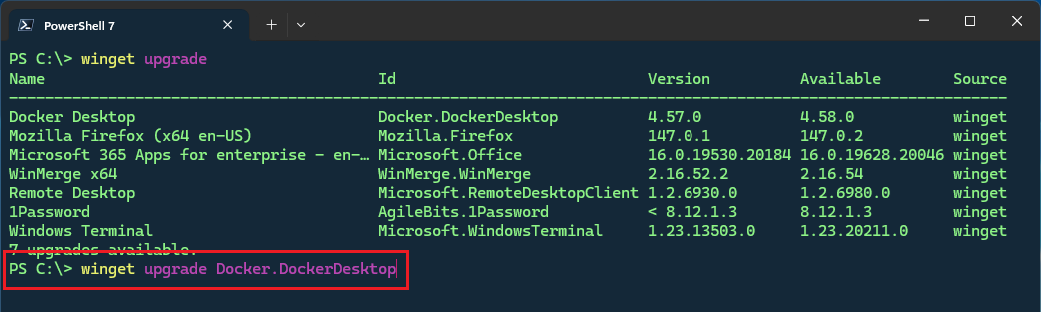
When you press the Enter key, WinGet will download the app update.
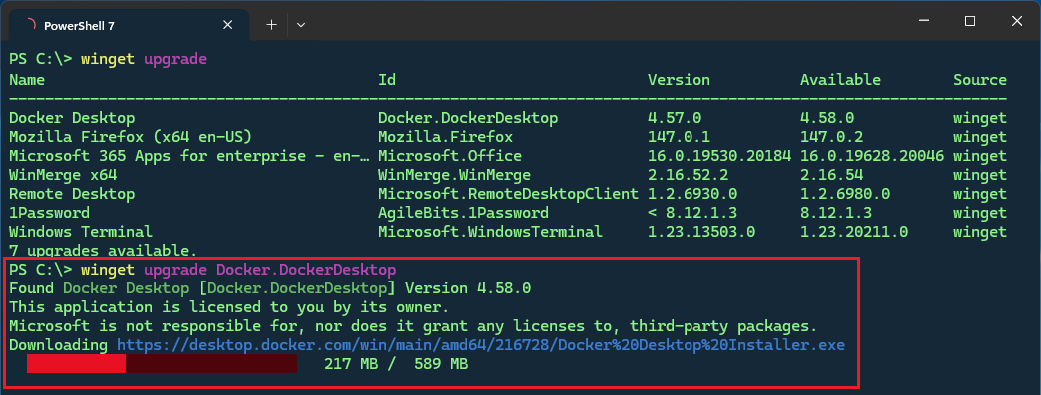
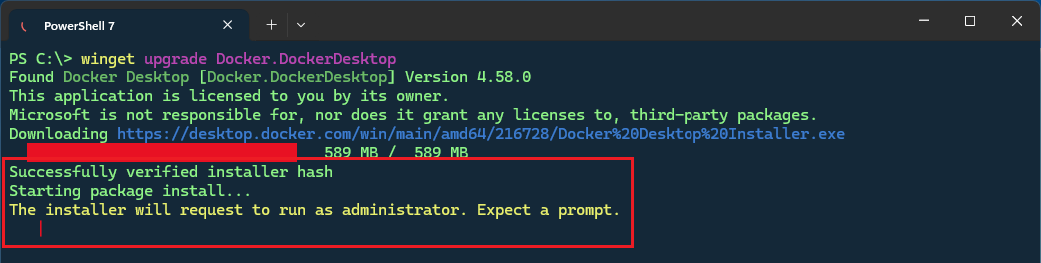
WinGet will automatically begin the upgrade process when the download completes.
Note: WinGet may notify you to "Expect a prompt" to run the installer with Windows administrator privileges. This prompt will
appear as a separate window with the title "User Account Control", click Yes to continue.
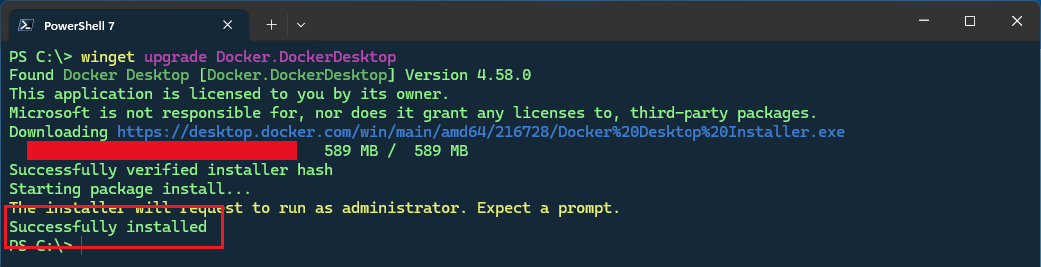
Once the upgrade finishes successfully, WinGet displays a clear "Successfully installed" message in the terminal — your confirmation that the app is now on the latest version, fully patched, and more secure.
Final Thoughts
In today's threat landscape, outdated software isn't a minor oversight — it's a target pointed at your security. Recent reports show vulnerability exploitation fueling 20%+ of breaches (Verizon DBIR 2025), with unpatched flaws tied to up to 60% of incidents in some analyses. Ransomware alone hits via known vulnerabilities in roughly a third of cases. Cybercrime costs are skyrocketing toward trillions annually — don't let a preventable patch gap be your weak link.
Make winget upgrade and winget upgrade --all your weekly ritual. Run it once a week — takes just minutes, covers the vast majority of your apps, and slashes risk dramatically. Too busy? Commit to at least twice a month. Set a recurring reminder to integrate WinGet into your routine.
One simple habit stands between "good enough" security and real resilience. Start today. Your future self (and your data) will thank you.